OSX 10.9 Mavericks Review and Key Features

OSX 10.9 Mavericks New Features and Review
OSX 10.9 Mavericks. Is it worth upgrading?

This is a quick review of the new Apple OSX 10.9 Mavericks release. This new free update was released today and replaces the previous 10.8 Mountain Lion that used to be available for purchase on the Apple App Store. Mountain Lion looks like it has been completely removed from the App Store. Apparently the guys at Apple ran out of big cat names and went with a famous Northern California surfing spot called “Mavericks” for the name of this latest release. Mavericks was named after a dog of one of the surfers so in reality this update is indirectly named after a dog, maybe not a good sign, we’ll see.

The update to 10.9 will be required for several software upgrades such as the new Xcode 5.

I have most of my important documents and images in my Copy folder, so I didn’t bother to make a backup before upgrading and everything went off without a hitch, it did take over an hour though so be prepared to fire up a second computer, or turn on your TV and get comfortable.

I didn’t bother with a bootable image or drive, I simply downloaded the update as an “app” from the App Store, it placed an icon in my launchpad, I double clicked on the icon once it had finished downloading and followed the instructions on the screen, it was very simple.  I am using an early 2012 Mac Book Pro 15″.

 Key OSX 10.9 Mavericks Features (What’s New)

  • Notification Center – This feature is my favourite so far, and is quite useful. Up on the top right of the screen if you have a reminder, or a calendar event due, it pops up showing you what you need to do. It integrates with iCal. And is essentially the same thing I use on my iPhone, and like my iPhone it has a very useful “Snooze” button. If you want to see what you have on your list, there is a new icon on the top right of the Apple bar to the right of the Spotlight icon that brings up a list.
  • Tabs in Finder Windows – This new feature give the ability to open Safari like tabs in your finder windows. Not sure about this yet if it’s really useful or not. I’ll see if I actually start to use it.
  • iMessage – Not really “New” but slightly improved, this was integrated in the last update Mountain Lion. This allows you to chat with people using iMessage on a iPhone, or other chat AIM, Jabber, Google Talk, and Yahoo!.
  • iBooks – Now fully integrated in the OS
  • Calendar – One of my favourite things on my Mac. I use it a lot, and it doesn’t seem to have changed much. They have integrated the Apple Maps software into the calendar, which is good and bad at the same time. Its a great feature, I just much prefer Google Maps over Apple any day.
  • Safari – Added a sidebar, big deal, that’s all the difference I can see so far, still just a very crappy browser that nobody with any sense will actually use.
  • Multiple Displays – This was something that drove me nuts in Lion and Mountain Lion. This is greatly improved now. Still not as good as my Dual Monitor PC setup, but at least now multiple monitors is actually like having multiple monitors and not just one or the other.
  • Apple Maps – Apple is trying to get us to use their IMO inferior map app. When my mac rebooted for the first time after the upgrade, I notices a shiny new Map icon on my quick launch bar. I know they are trying hard, and it actually looks pretty good, I am a huge Google Maps fan boy though so I will more than likely be sticking with Google for my map needs.
  • Better battery life – The battery life on my MBP was already amazing, but there are reportedly some new processes going on behind the scenes to shut down programs that up until 10.9 would just continue to run in the background.


Some OSX 10.9 Mavericks issues I seem to be having:

  • Safari is supposed to be much improved, but it still has issues, since using it for the past hour, it has done silly things such as half the page I am browsing will just turn blank white, other times it will flicker, etc.  It does have some new features such as a seemingly useless sidebar, but for a web developer like me, I cannot see myself using this browser I will stick with Firefox as my number one, then Chrome as my number 2.
  • The updates in the App Store don’t want to show up. It says I have 6 updates available, but when I click on the updates button on the top, all I get is a blank grey screen. I have rebooted several times, quit App Store, etc, nothing seems to allow me to see these updates.
  • I am sure there will be more minor issues as my cursory glance at this update turns into actual use, and I expect like all OS updates from Apple that they will be working on the latest bug fix release to be rolled out soon.
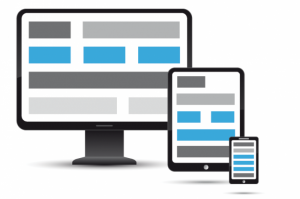
Mobile Usage Stats and the Need for Mobile Friendly Content

Lately it seems I have been getting several requests from clients looking to update their VERY OLD websites. When I say “very old” I am talking 3-5 year old websites. Some things improve with age, a single malt whiskey, a red bordeaux, my marriage, etc. Sadly websites are not in this category. “Website Years” are a lot like “Dog Years“, technology, and societal uses of the internet change so much, and so quickly, that we really need to think of a 3 year old website being like a 21 year old website. Mobile Internet Usage

Everything on the internet changes and develops very quickly. The speed at which the expectation of mobile content has increased was really due to the best piece of tech I have ever owned, my iPhone, and the iPad. The iPhone and the wave of smartphones and tablets that have hit the market has been amazing. The world is truly at everyone’s fingertips now, and the business world knows it and in some cases is struggling to adapt quickly enough.

Many of us in this industry failed to see that this mobile tsunami was coming so quickly, but by it’s very nature, the internet is an adaptable fast moving space. Responsive web design started to become quite popular only about a year ago (remember dog years). So if your site is more than 3 years old and even in some cases just a year or two old, chances are it’s not mobile friendly and might just be in need of a re-do.

Bottom line is, if your website, online content, videos, etc. that you are serving up on your fancy relatively newish website are not mobile friendly, you are loosing viewers, and potential customers. It’s time to invest in a facelift, or a complete redesign of your website.

There are several ways to serve up mobile friendly content:

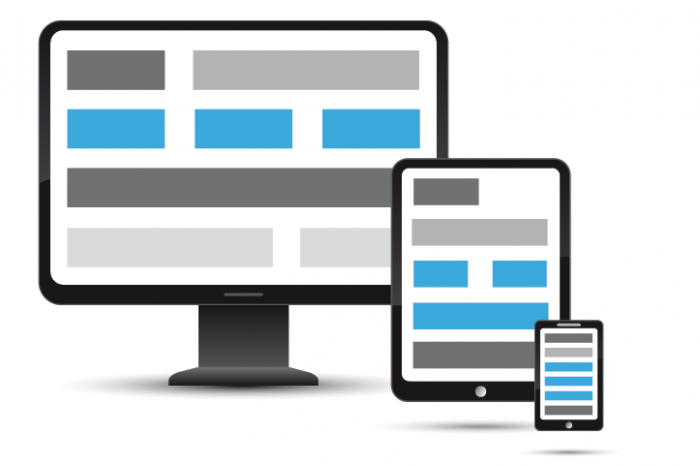
  • Responsive Design – A design that moves and adapts to different screen sizes.
  • Alternate Mobile Friendly Version – A script detects what screen size is attempting to view the content and serves up the best design of your website.
  • Web App – A website that acts just like a mobile app (this website uses this method)

If you are not sure what your website looks like on mobile devices, there are several online services that will show you. The one I like to use is mobiletest.me

If your website does not work properly on a mobile platform, it’s time to update the design. There is no better time than now. Mobile use of the internet is only going to increase.

Here are 25 interesting facts about how mobile internet users access online content:

  1. Within 4 years, more consumers will access internet content via mobile devices than PCs (Source: Brightcove)
  2. People spend more time on mobile apps (94 minutes/day) than desktop and mobile web (72 minutes/day) (Source: Brightcove)
  3. 43% of B2C marketers use mobile content as a content marketing tactic (Source: CMI)
  4. 42% of B2C marketers use mobile apps as a content marketing tactic (Source: CMI)
  5. 33% of B2B marketers use mobile content as a content marketing tactic (Source: CMI)
  6. 26% of B2B marketers use mobile apps as a content marketing tactic (Source: CMI)
  7. From 2011 to 2012, the use of mobile as a tactic by B2B marketers has increased from 15% to 33% (Source: CMI)
  8. 30% of marketing managers think that branded mobile apps is the most important channel for engaging consumers (Source: The CMA)
  9. There are 5x as many cell phones in the world as there are PCs (Source: Impiger Mobile)
  10. 82% of US adults own a cell phone (Source: Pew Internet)
  11. 49% of the mobile subscribers in the US own a smartphone (Source: MobiThinking)
  12. 25% of Americans ONLY use mobile devices to access the internet (Source: GoMo News)
  13. 73% of smartphone users said they used mobile web to shop rather than an app (Source: Yahoo)
  14. 72% of smartphone users in the US use the device to look up directions or maps (Source: zmags)
  15. 56% of global online consumers watch video on mobile at least once a month (Source: Brightcove)
  16. 28% of global online consumers watch video on mobile at least once a day (Source: Brightcove)
  17. 60% of web users say they expect a site to load on their mobile phone in 3 seconds or less (Source: Compuware)
  18. 74% are only willing to wait 5 seconds or less for a web page to load before leading the site (Source: Compuware)
  19. Time spent on mobile apps is largely dominated by games and social networking (49% and 30% resp.) (Source: HubSpot)
  20. 72% of smartphone users in the US use the device to go online while traveling (Source: zmags)
  21. 64% of smartphone users in the US use the device to go online while in a restaurant or coffee shop (Source: zmags)
  22. 63% of smartphone users in the US use the device to go online while in a store when shopping (Source: zmags)
  23. 74% of smartphone users use their phone to help with shopping – 79% ultimately making a purchase as a result (Source: Impiger Mobile)
  24. 9 out of 10 mobile searches lead to action and over half lead to purchase (Source: Search Engine Land)
  25. 70% of mobile searches lead to action within one hour – It takes one month for the same percentage of desktop users to catch up (Source: Mobile Marketer)

Stats courtesy of Zemanta

How to Easily Setup a Classified Ads Website using WordPress Step by Step Instructions

»» Just take me to the step by step instructions now! – Click here.

I am constantly thinking up what I think at the time are amazing ideas that would have the potential to change the world, the problem I run into is that I realize just how huge an undertaking some of these grandiose ideas of mine are and giveup somewhere in the dreaming stage, there are a couple however that I have made some very recent large strides forward, and so we will just have to see where I end up with them. If you have a combination of real passion (not the flighty kind), ingenuity, know how, a proven market, and just plain hard work, I know there really isn’t anything that is impossible.

Having said all that, I just recently had a great idea for a website that would provide a needed valid service to thousands of people in a specific niche market (I’ll reveal more about this at a later date). The best thing about this latest idea is how really easy it is to set it up on a technological sense of things. Marketing, exposure, and just getting people to actually use the website is a whole different kettle of fish that I will get into in a later blog post.

The core of my latest venture is simple, allow people within a specific demographic, or niche market the ability to easily add their own information in form of a classified ad, or listing. People would be able to create two types of listings, looking for X, or offering X in a variety of categories.  There would have to be options for free and paid classified ads, and it should be very simple and easy for a person to put their offering on the website and edit it afterwards if needed. Sounds simple enough but I am not a hot shot silicon valley programmer that eats functions and database fields for breakfast, I get by alright, but to create something like this from scratch would be a big wooly mammoth undertaking.

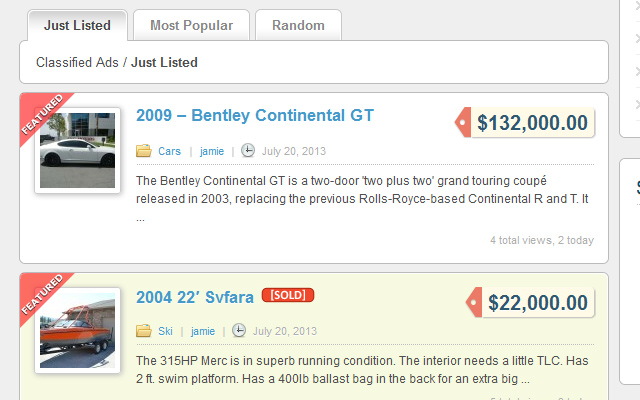
So what does a guy with a great idea, and the development budget similar to a quarter of the GDP per capita of Zimbabwe do? He looks for a pre-built solution. Something that will work out of the box with limited fussing and development. After literally a month of searching, reading reviews, buying some things that just didn’t work the way they were hyped up to, I found ClassiPress. ClassiPress is a Classifieds ad website software, or theme that transforms WordPress into a feature rich full on classified ad site. I purchased it to setup my latest website and have been quite impressed with it so far. It is easy to setup, has tons of options, and best of all is very easy for my website customers to use. View a DEMO Site Here running my Child Theme.

Here are some basic instructions to set it up:

Step 1 – Install WordPress for your website

  1. Download and unzip the WordPress package if you haven’t already.
  2. Create a database for WordPress on your web server, as well as a MySQL user who has all privileges for accessing and modifying it.
  3. Upload the WordPress files to the desired location on your web server:
    • If you want to integrate WordPress into the root of your domain (e.g. http://example.com/), move or upload all contents of the unzipped WordPress directory (excluding the WordPress directory itself) into the root directory of your web server.
    • If you want to have your WordPress installation in its own subdirectory on your web site (e.g.http://example.com/blog/), create the blog directory on your server and upload the contents of the unzipped WordPress package to the directory via FTP.
    • Note: If your FTP client has an option to convert file names to lower case, make sure it’s disabled.
  4. Run the WordPress installation script by accessing the URL in a web browser. This should be the URL where you uploaded the WordPress files.
    • If you installed WordPress in the root directory, you should visit: http://example.com/
    • If you installed WordPress in its own subdirectory called blog, for example, you should visit: http://example.com/blog/

That’s it! WordPress should now be installed.

Step 2 – Purchase and Download ClassiPress

  1.  Go to www.appthemes.com/themes/classipress
  2. Pick the Theme Package you want, I would suggest the “Standard Package” for $99, click Add to Cart
  3. Proceed to checkout and pay, then download the theme package in a zip file.
  4. Find where you saved the classipress-3.3.zip file you just downloaded and unzip it.
  5. Install ClassiPress – Login to your WordPress admin dashboard, and go to:
    • Appearance>Themes
    • Click the “Install Themes” tab at the top
    • Click the “Upload” link
    • Browse to the folder where you unzipped the classipress-3.3.zip file and look for classipress.zip
    • Install this file.
    • You should now have ClassiPress installed, and you are almost ready to go

Step 3 – Configure Your New Classified Ad Website Settings

  1. Setup your classified ad categories.
    • In the WordPress Dashboard go to Ads>Ad Categories
    • Type in a name for your new category and click “Add New Ad Category”
    • You can make categories, and sub categories. Pick a parent category if you want to make a sub category such as Cars/Sports Cars, or maybe Housing/Apartments, or Housing/For Sale By Owner, etc.
  2. Look through the settings located in the new ClassiPress>Settings section that has appeared since installing ClassiPress. Make sure to set things like pricing, security, and the color scheme etc.
  3. Change the placeholder text used in some of the emails, and on the signup page, etc. to your own real content.
  4. Also you may want to upload your own logo or pick a different color scheme

Step 4 – Optional – Purchase a Child Theme for ClassiPress to drastically alter the look of the website.

  1. Option #1 – Click Here to view the beautiful and cleanly designed (yes I am biased) Skye Child Theme
  2. Option #2 – Click here to view other great ClassiPress child themes on the AppThemes Marketplace
  3. Purchase the Child Theme you want and download it.
  4. Install the Child theme, same process as before. A “child” theme relies on having a “Parent” theme installed first, in this case it’s ClassiPress. You have already installed this in a previous step, so now with it already installed, you can go ahead and install the child theme.
    • Appearance>Themes
    • Click the “Install Themes” tab at the top
    • Click the “Upload” link
    • Browse to the folder where you saved the childtheme zip file, choose the zip file.
    • Install this file.
    • You should now have the child theme installed
    • Look for any configurable options for the child theme and configure them to your liking.

Step 5 – Tell People About Your Website and Get Them Using it.

  1. Add some real content, even if it’s just a few listings.
  2. Write an invitation to put on your website, tell people what it is you offer, and why you are offering it
  3. Create a Facebook.com page for your new site and invite all your friends
  4. Consider a Facebook ad campaign, or a Google AdWords ad campaign. To kickstart your site
  5. Consider a contest where anyone who “Likes” your Facebook page is entered to win
  6. Write some interesting and pertinent content regarding your particular niche that will draw people to your website
  7. Remember if everyone is your customer, nobody is your customer, pick your niche and stay in it for effective targeted marketing.


ClassiPress Child Theme

After a lot of hard work, I have finally launched my very own theme company called “Snappy Themes”. My first offering is a Child Theme for ClassiPress by Appthemes.com. The Child theme offers the following features:

  • Multiple color schemes to choose from, 14 in total
  • Responsive
  • WooCommerce Ready
  • Compatible with Dynamic Multi-Level Fields Plugin
  • “Featured” and “SOLD” Graphics

Have a look by following this link –  CLICK HERE.

skye-child-theme-screenshot-04